Choose a starter mission. Finish it, step by step.
Choose a starter mission from the catalogue and follow its saved plan of milestones and ordered steps. Missions shows the next step and what is still missing, and keeps a record of what is reported and what has evidence. AI-generated plans and revisions are not available in this release.
From a starter mission to recorded progress.
Open Missions from Home and choose one of eight starter missions from the catalogue, such as building a birdhouse, restoring a bicycle or a science-fair project.
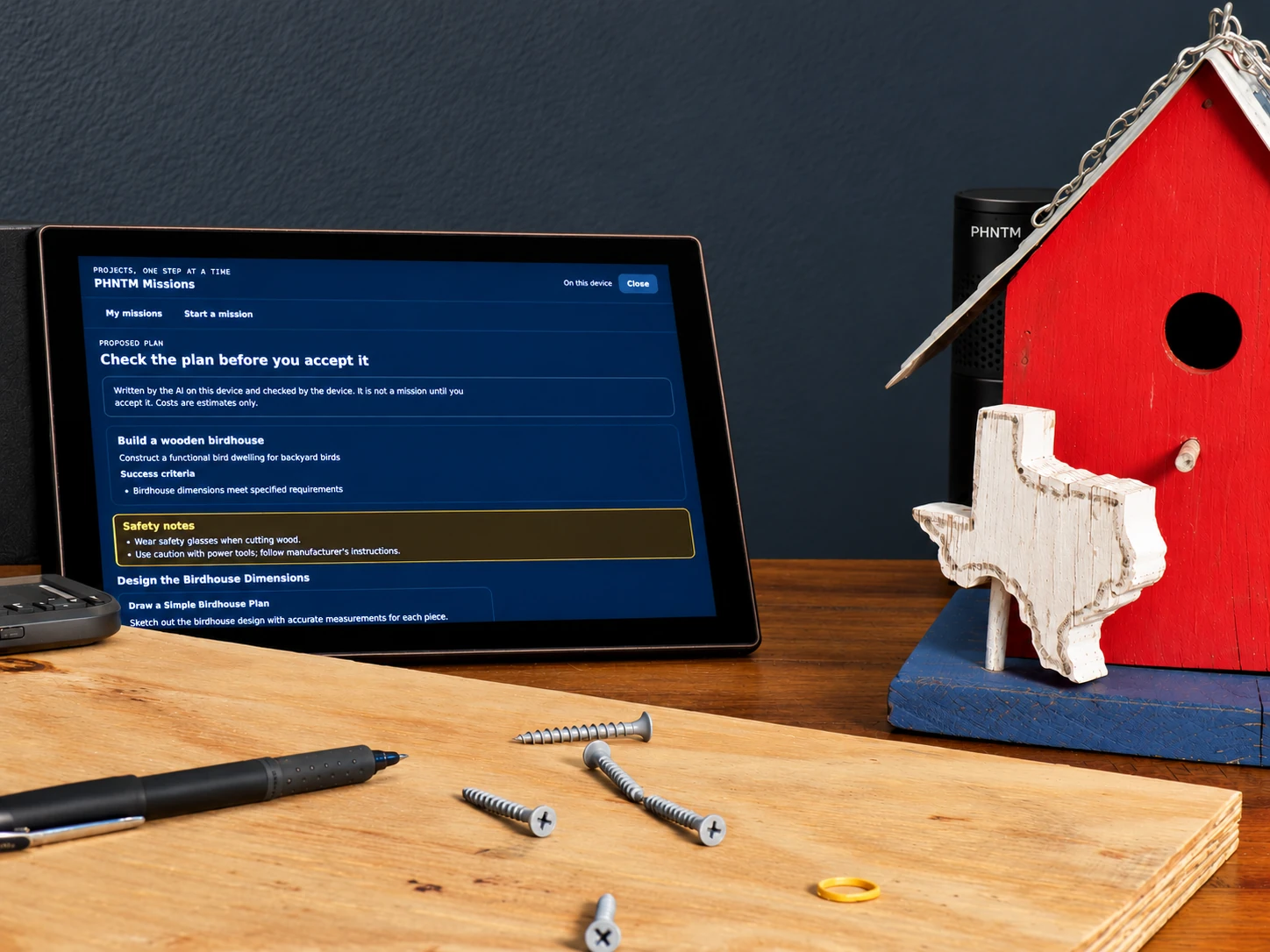
View the original device photograph
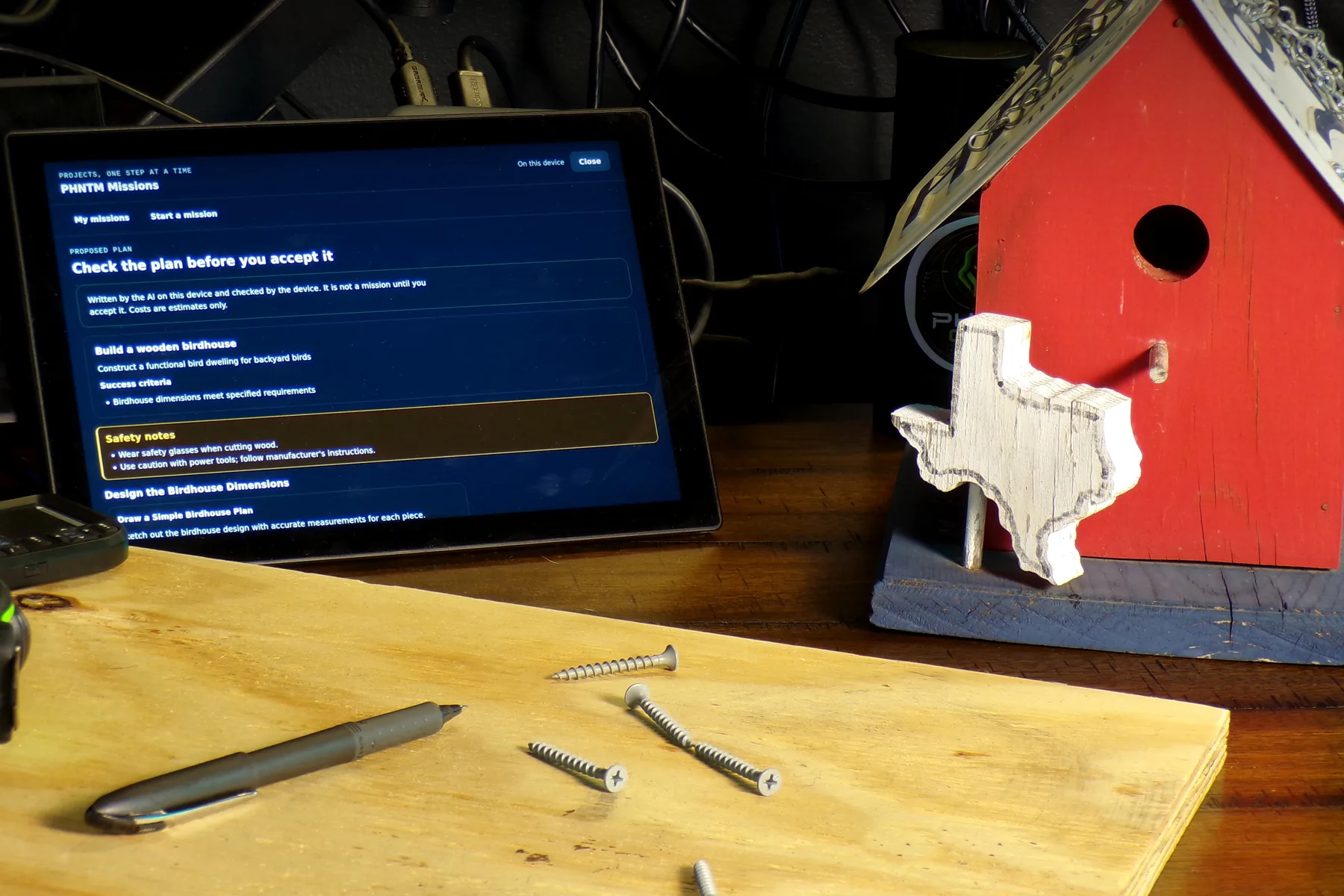
Choose a mission
Open the catalogue and choose a starter mission.
Review the plan
The saved plan shows milestones, steps in order, the materials and tools each step needs, and what counts as done.
Work through it
The screen shows the next step and what is still missing. Existing missions remain available.
Show it’s done
Mark a step done, or record evidence for it. A finished mission says plainly whether its outcome is verified or only reported.
Your word counts. Evidence counts more.
Missions never pretends a step was checked when it was only ticked. Every step carries its own definition of done, and the record says how it was finished.
- Marked done
Marking a step done on your own word records it as reported, not verified.
- Evidence recorded
Recording evidence for the step, such as a photo, raises its grade.
- Hazard step
A step that carries a hazard, such as mains electricity, power tools or heights, cannot be marked done until evidence is recorded for it.
Evidence you can see. Help when the math gets in the way.
A photo for the step
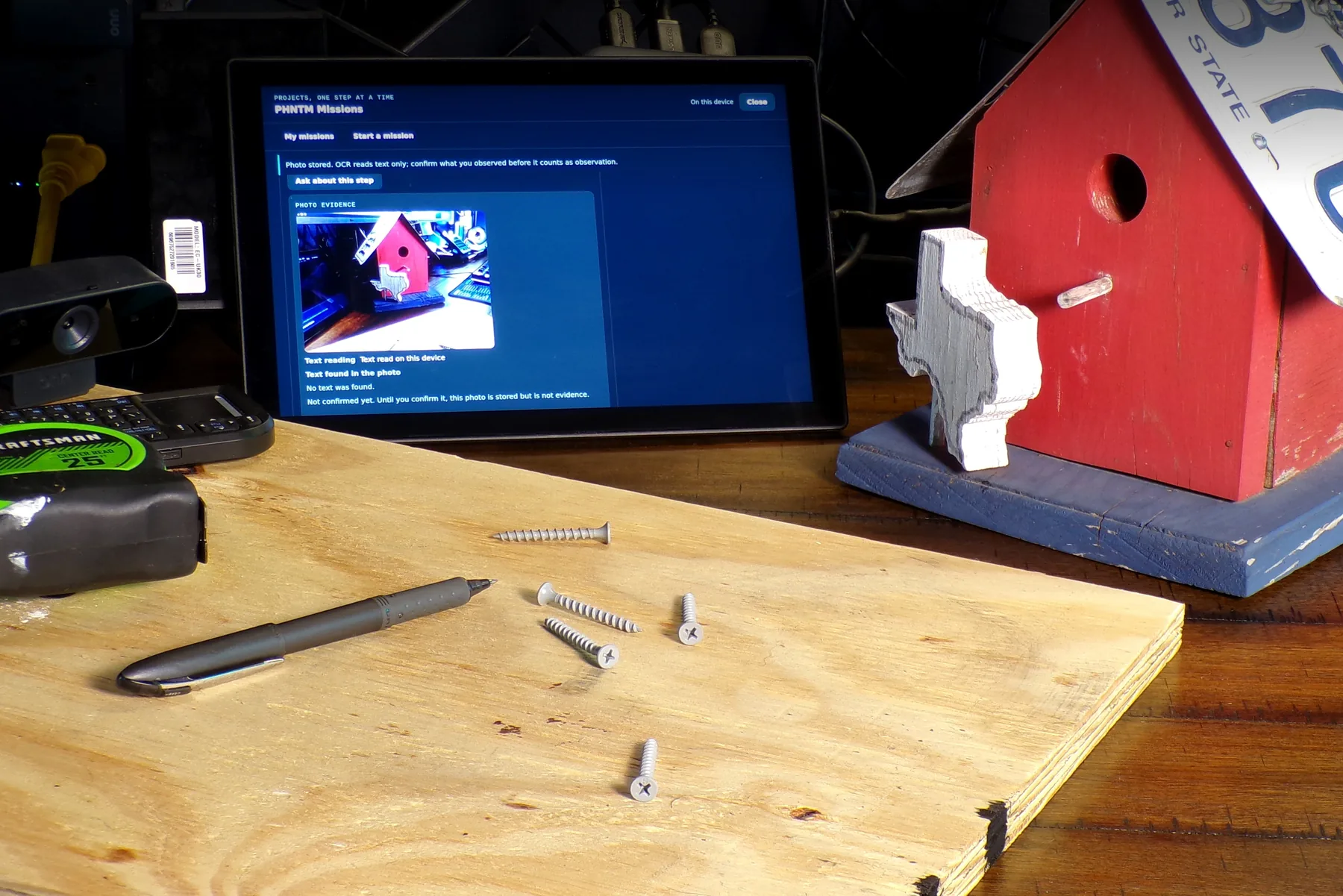
A photo is stored with its step and read by local text recognition; you confirm what it shows. The assistant does not see images.
Snap it with Cam
With a built-in camera if fitted or a USB webcam (compatibility depends on browser and Linux support), the Cam screen can take an explicit Mission snapshot. It goes to that step, local text recognition reads any text in it, and you confirm what it shows.
Learn the math on the way
When a step needs math you have not learned yet, the plan names the Tutor skill. That lesson opens in PHNTM Tutor and stays linked to the step.
Catalogue plans on the device.
Starter mission plans are stored on the device. Using the catalogue does not request a cloud-generated plan. In Private mode (the default), your conversations are not sent to a cloud AI service. A retained legacy Telegram connection, if present, carries messages through Telegram in every mode, so this is not a promise of network silence.
Saved on the device
Starter mission plans are stored on the device. Using the catalogue does not request a cloud-generated plan.
Catalogue plans in this release
New AI-generated plans and revisions are unavailable in both Private and Boosted modes.
Exported and backed up
Missions are included in Take Everything and in backups. A factory reset removes them.
Yours to switch off
Missions has no switch in Settings; to turn it off, email support and they will help you. The Missions buttons then disappear.
What Missions is, and what it isn’t.
- “Reported” means your word. A step marked done on your own word is recorded as reported, not verified. Recording evidence raises its grade.
- Hazard steps need evidence, but Missions does not make hazardous work safe. Follow the manufacturer’s instructions and local rules, and use a qualified professional where one is needed.
- Start from the catalogue. Starter missions provide saved plans with milestones, ordered steps, materials and tools, and what counts as done.
- AI planning is unavailable. AI-generated plans and revisions are not available in this release.
- Photos are read for text, not understood. Local text recognition reads text in a photo and you confirm what it shows; the assistant does not see images.
- Earlier proposals cannot be accepted. Pending generated plans can be read or discarded. Existing missions remain available.
Before you start a project.
How do I start?
Where do plans come from?
Can I request an AI-generated plan?
What happens to existing missions?
What is the difference between reported and verified?
What happens with dangerous steps?
Does Missions send my project to the cloud?
Can the assistant see my photos?
Start the project. Finish it honestly.
Order your PHNTM One. Each unit must complete an automated burn-in on its shipping build before shipment. $799 once, with no required subscription for local use.
$799 one-time · ships within 6–8 weeks after payment (EU: pre-order) · free US shipping · ships worldwide · 30-day returns